
Melvor Idle 2 Save Backup and Demo Transfer Guide
Transfer Melvor Idle 2 demo progress with Melvor Cloud or same-device saves. Export a local save-string backup and preserve a missing character’s data.
Does demo progress carry into Early Access?
Yes. The developer confirms two transfer paths for the Melvor Idle 2 demo:
| How you played the sequel’s demo | Officially described transfer |
|---|---|
| With Melvor Cloud | Save progress carries over automatically |
| Offline, continuing on the same device | Local progress carries over without an extra transfer step |
This applies to the Melvor Idle 2 demo, not an original Melvor Idle character. The public demo was scheduled for removal around 09:00 UTC on 17 November 2026, before the Early Access launch. The platforms and purchase page explains the current Steam release.
How do you make a local save backup?
The launch patch adds a top-right in-game menu containing Copy Save string to Clipboard.
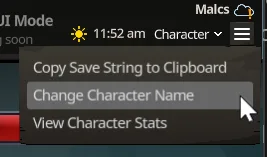
- Load the character you intend to preserve. Check the character name shown at the top right.
- Open that top-right in-game menu.
- Choose Copy Save string to Clipboard.
- Open a plain-text editor on your computer and paste the clipboard contents.
- Save the complete string in a file you can identify by character and date. Keep the previous backup as a separate file when making a new one.
- Reopen the file to confirm it contains the string rather than an empty document.
The menu action is documented by the developer. Naming and checking the text file are backup precautions recommended by this site. Keep your exported save private: it represents your character data and should not be pasted into public comments or screenshots.
What is the safest way to continue a demo character?
Make the backup first if the demo and character remain accessible. Then use the Early Access game through the official Steam listing.
For a Cloud character, keep using the Melvor Cloud identity associated with the demo. For an offline character, continue on the same device and preserve its existing local data. A same-device carry-over promise should not be interpreted as permission to clear that data or uninstall everything first.
After loading, check the character name, Skill levels and bank. Then make a fresh dated backup before resuming offline training. The launch update adds substantial content and changes, so use the beginner guide to orient yourself even if you have completed the demo tutorial.
What if the expected character is missing?
Preserve any existing save export and stop before deleting local data or replacing a save. Record whether the demo used Melvor Cloud or local offline play, which device held it, and which character you expected to find.
Use the developer’s support link on the Steam store for game-account or save problems. The site’s contact page is for correcting this guide; Juary cannot access or restore a game account. Do not send game passwords to either a public forum or this website.
For a character that loads but has an interface or quest issue, use the settings and troubleshooting guide. It distinguishes documented launch fixes from general diagnosis.
Sources and scope
Checked 18 November 2026; Steam Early Access launch. No save was imported or personally tested in preparing this guide.
Related Articles
items
Melvor Idle 2 Offline Progress: Supplies and Stop Conditions
Learn how Melvor Idle 2 offline progress works. Estimate training supplies from hourly rates, set Reach Level and use the Event Log to check your session.
items
Melvor Idle 2 Platforms and Purchase: Steam, Mobile, Demo
Check Melvor Idle 2 platform availability, regional Steam pricing, demo status and Android/iOS plans before buying the separate Early Access sequel.
items
Melvor Idle 2 Settings and Troubleshooting Guide
Find Melvor Idle 2 sidebar settings and Quick-Equip filters. Check Direct3D 12 launch options, sleep issues and stuck quests with a save-first checklist.
Was this helpful?
Thanks for the feedback!