
Melvor Idle 2 Bank Guide: Tabs, Tags and Equipment Sets
Organise the Melvor Idle 2 bank with named tabs, item tags and placeholders. Check equipment sets, sale quantities and supplies before your next training action.
How should you organise the bank?
Organise the Melvor Idle 2 bank around what you plan to do next. Use named tabs, item tags and placeholders to distinguish ingredients for a current quest or training action from items you are willing to sell. Equipment sets can have names of their own.
The system supports several ways to sort items; the grouping below is an editorial suggestion, not an official required layout. It is useful because skilling, quests and combat all draw on your inventory.
Make a small set of useful groups
Start with groups you can recognise at a glance:
| Suggested group | What belongs there | Check before removing an item |
|---|---|---|
| Current goal | Inputs needed for the next quest or chosen action | Does the active requirement still need it? |
| Training supplies | Materials consumed by production actions | What does the current action tracker show as items used/hr? |
| Equipment | Weapons and gear for your intended loadouts | Is it used by another combat style or set? |
| Sale candidates | Items you have deliberately decided to sell | Is the selected sale quantity correct? |
Use the bank tab names and item tagging features to express those groups in the way you find easiest to scan. Use placeholders when you want a depleted item’s place to remain visible in your organisation. A placeholder is an organisation aid; it does not create the missing resource.
If you cannot decide whether to keep a material, start with the next quest requirement and the production action you intend to run. Those are stronger reasons to keep an item than an unverified claim that every low-level resource is valuable forever.
Check a production action before selling its inputs
- Open the skill action you intend to run next.
- Read its displayed ingredient requirements.
- Check the current action tracker for items used/hr and items gained/hr.
- Locate those inputs in your bank and keep them distinguishable from sale candidates.
- Choose the sale quantity deliberately before confirming a sale.
The point is to protect a known plan, not to hoard every drop. For example, if you intend to leave a production action running, selling its inputs first undermines the session even if the sale raises immediate GP. Our offline planning guide explains how to check the action and supplies before leaving.
When the next goal is simply a level requirement, Reach Level and skill planning can help define how long that supply needs to support the action.
Name equipment sets so comparisons make sense
Use distinct equipment set names for setups you actually use. A name describing its combat style or purpose is easier to interpret than several indistinguishable sets when switching gear.
In the launch build, hover an equipment item to see its stats and a comparison with an existing Combat loadout. Press TAB to cycle the comparison loadout. Check that you are comparing against the set you intend to change.
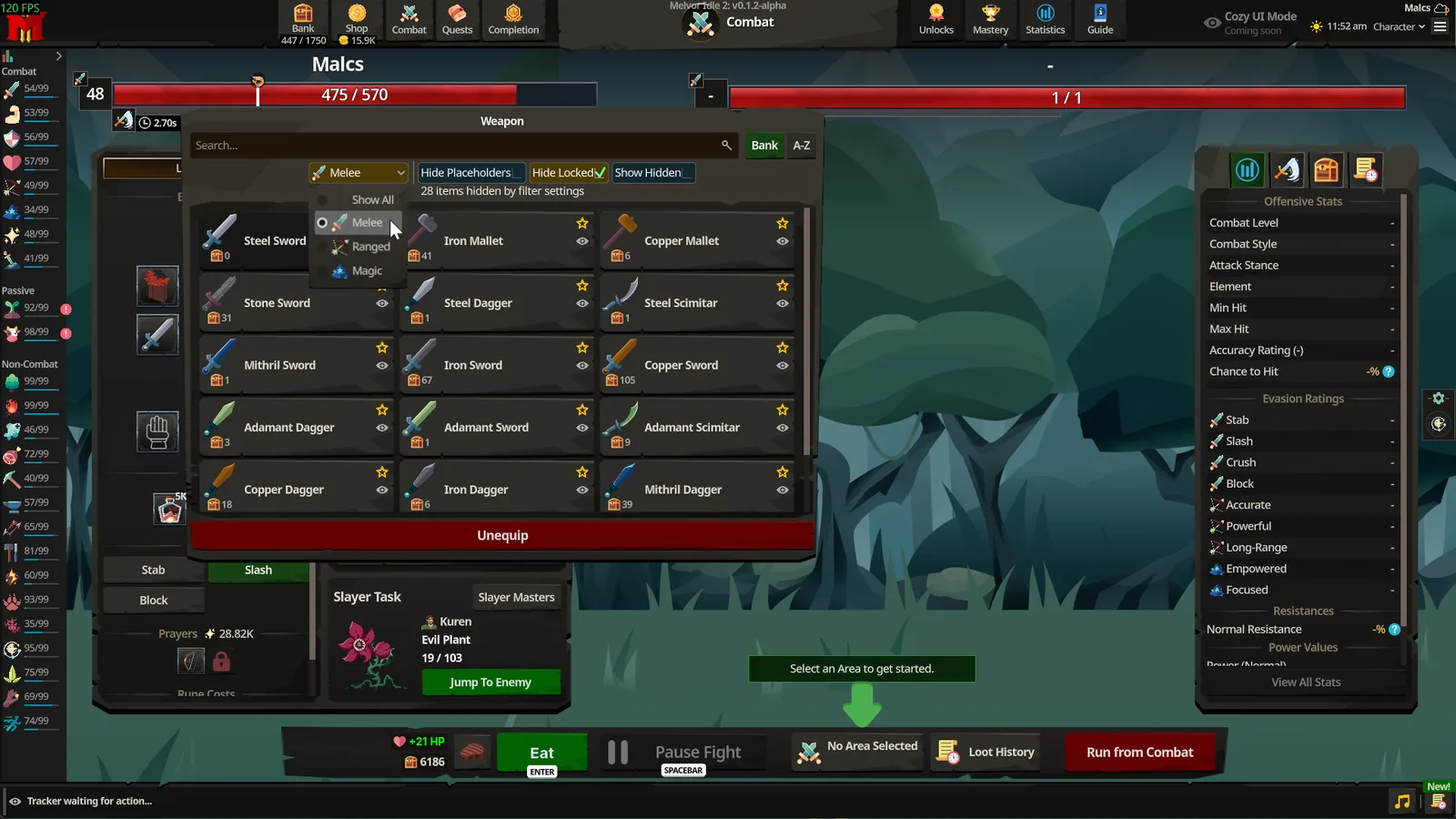
Quick-Equip also filters weapons by combat style. Clicking an occupied weapon slot defaults to the style of that weapon; an empty slot defaults to Show All. If another weapon seems absent, check the filter before assuming it was sold or lost. See combat preparation for the full sequence.
Recheck quantities when buying or upgrading
The launch patch fixes several quantity-related issues: bank quantity modes resetting, an incorrect maximum when an upgrade takes multiple copies of an item, the Max option after switching items, and quantities displayed by quick-buy menus.
After changing the item or transaction type, read the selected quantity and the inputs shown again. A visible Max option is convenient, but it should not replace checking whether you intend to spend that much of the resource. This matters when the same stock is also reserved for a quest or another production action.
If a quantity still looks inconsistent, avoid confirming the transaction, preserve a save backup and record the item, selected quantity and steps to reproduce it. Follow the support guide rather than treating a launch bug fix as proof that every inventory problem is solved.
Which early items changed value at launch?
The launch notes increase the sale price of craftable Jewellery from Topaz to Emerald and early Wands and Staves in Runecrafting. Feathers are now worth 1 GP, reduced from 4 GP.
Those changes make old demo money advice worth rechecking. They do not establish a universal best GP/hr method: inspect the current sale price, production costs and your own available action before choosing what to make or sell. The beginner guide keeps the first plan focused on useful progression rather than a borrowed money route.
For the wider context behind those changes, read the Early Access launch update and patch-note links.
Sources
- Official Steam store: placeholders, item tagging, tab names and equipment set names.
- Official Early Access patch notes: comparisons, Quick-Equip, quantity fixes and early item-value changes.
Checked 18 November 2026 for the Early Access launch. Suggested bank groups are organisational advice, not a claim of a tested optimal inventory layout.
Related Articles
guides
Melvor Idle 2 Beginner Guide: First Skills and Quests
Start Melvor Idle 2 with onboarding and quest goals. Learn how to choose skills, check action rates, organise supplies and prepare your first offline session.
guides
Melvor Idle 2 Combat Guide: Gear, Loadouts and Armour
Prepare for Melvor Idle 2 combat: compare gear with TAB, select a Quick-Equip combat-style filter and read armour rules before testing your loadout.
guides
Melvor Idle 2 Skills and Mastery Guilds Guide
Plan Melvor Idle 2 skill training with quest goals, action rates and Reach Level. Learn how task-based Mastery Guilds differ from the original game.
Was this helpful?
Thanks for the feedback!